Sampling and import
Record from the microphone or an audio interface, resample the app's own output, or import audio files, folders and the sound of a video.
Sampler and pattern sequencer · iPhone · iPad · Android · Mac
The successor to VU202. VU303 introduces a new sampling engine and a new panel in the style of a late-'90s phrase sampler. The VU202 engine is still included, so your VU202 projects open and sound as they did.
You record or import samples onto 32 pads, edit them in TRIM, program patterns in STEPS, chain them in SONG and mix the result with built-in effects or AUv3 plug-ins. This page describes each screen and every key.
VU303 is in beta. Testing runs through Patreon – see Get VU303.
Overview
Each key on the panel is labelled with its function, as on a hardware sampler. Settings that need more room open in a dialog over the panel.
Record from the microphone or an audio interface, resample the app's own output, or import audio files, folders and the sound of a video.
Per pad: gate or one-shot, loop, reverse, stereo / mono / left / right, and the VU303 or VU202 engine. Any bank can be a choke bank.
Start, end, level, attack and decay; truncate, normalize, reverse, silence; chop into 4, 8 or 16 slices; loop points; time-stretch to the project tempo.
32 patterns of up to 256 steps with velocity, pan, key, nudge and gate per step. Live recording with quantize and swing from 50 to 75%.
A list of patterns, each with a repeat count, that plays as one arrangement. Steps can be inserted, deleted and moved.
Channels for banks A–D, the pads and the master, with fader, mute, solo and meters. Inserts take built-in effects or AUv3 plug-ins.
Eight XY pads that process the master output, each with one of 16 effects. LATCH keeps an effect on after you lift your finger.
Render a pattern or the song as a 24-bit WAV mix or as stems. Projects can be sent to VU Studio, which imports .vu303 files.
Screens
The keys along the top switch between six views; the gear opens SETTINGS. The transport (STOP, PLAY, REC, PATTERN) stays at the bottom in every view. Select a screenshot to enlarge it.
Built-in sounds
The app includes nine drumkits with 785 samples in total, named after the samplers they were recorded from. They are listed under DRUMKITS in the SOURCE dialog, where you can preview a sample and assign it to the selected pad.
Coming from VU202
VU303 is the successor to VU202. It introduces a new VU303 sampling engine and keeps the VU202 engine alongside it, so you choose per pad which one plays the sample. It also has a new interface – a panel modelled on a late-'90s phrase sampler – and a set of new functions.
.vu202 project loads with the VU202 engine, so its pads keep their HI-FI / STANDARD / LO-FI sound. You can move any pad to the VU303 engine later..vu303. Inside it is the same project format as VU202, and VU Studio imports it.User manual
The manual follows the app from left to right: the six views, then SETTINGS and the effect reference. Key names are written as they appear on screen, for example TRIM ›. The screenshots show the iPhone in portrait; landscape and iPad have the same keys in a different arrangement.
Every screen has the same frame: view keys at the top, the panel of the current view in the middle, and the transport at the bottom.
| PADS … LIVE | The six view keys. The lit key is the current view. |
| ⚙ | Opens SETTINGS: projects, export, audio, MIDI and app options. |
| STOP | Stops playback. |
| PLAY | Starts and stops playback. |
| REC | Arms pattern recording: pads you play while the pattern runs are written into it. |
| PATTERN | Switches between PATTERN (loops the current pattern) and SONG (plays the song chain). REC has to be off to switch to SONG. |
Dialogs open as a card over the dimmed panel; tapping outside the card closes most of them. Short messages appear as a red LED line near the bottom of the screen. Longer jobs – loading a project, importing a long sample, resampling – show the LOADING overlay; some of them can be cancelled.
Keys act as soon as your finger lands. Actions that delete or overwrite something ask SURE? first – tap the key again within 4 seconds to confirm. You can turn these confirmations off in SETTINGS › PADS › CONFIRM DELETE.
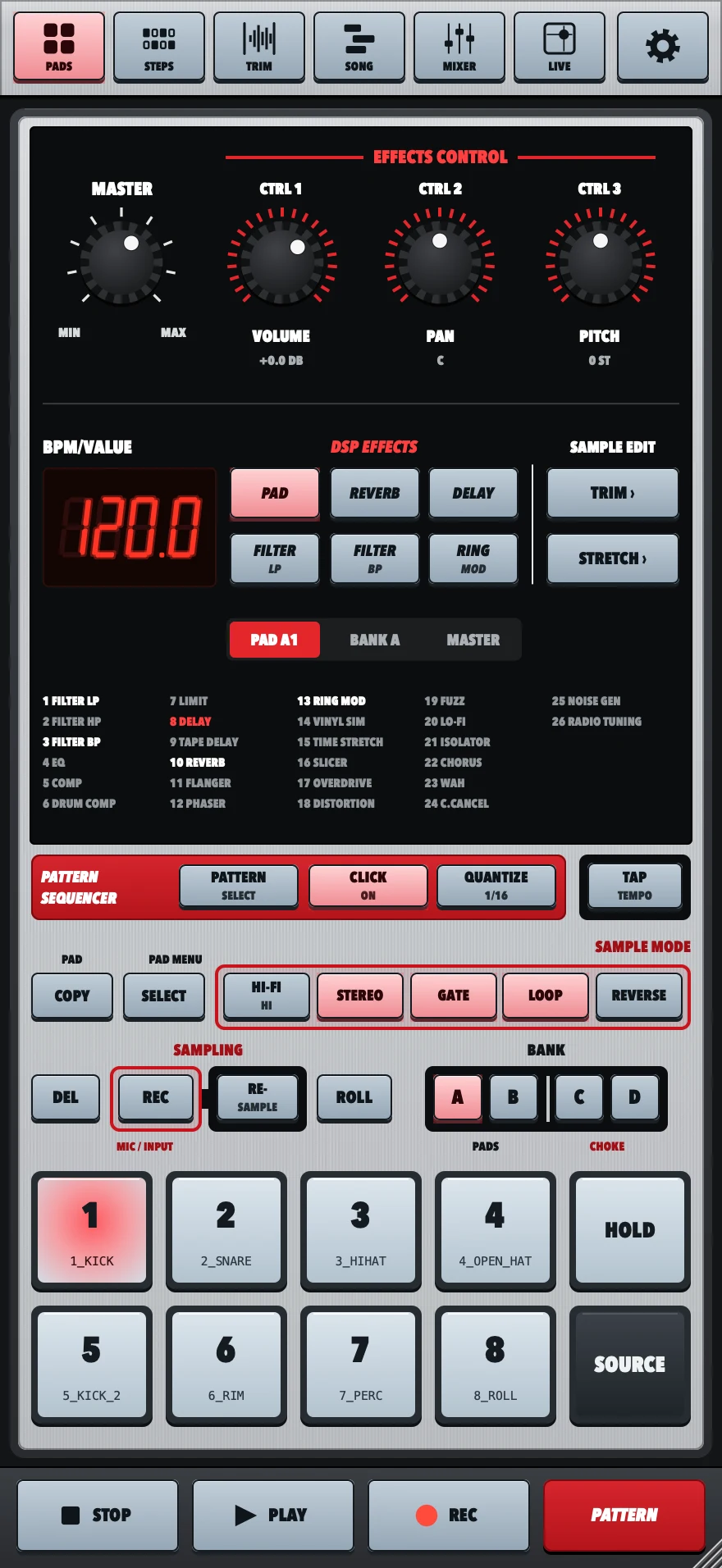
PADS is the main panel. You play the pads here, pick the pad you want to edit, and shape its sound with effects. There are 4 banks (A–D) of 8 pads – 32 pads in total.
| MASTER | Main output volume, from MIN to MAX (0 dB in the middle position, up to about +3.5 dB). |
| CTRL 1 · 2 · 3 | Three knobs whose job depends on the selected DSP key. With PAD selected they are VOLUME (−24 to +12 dB), PAN and PITCH (±12 semitones). With an effect key selected they control that effect's first three parameters – see the effect reference. Double-tap a knob to reset it. |
| BPM / VALUE | Shows the tempo. After you turn a knob it shows that knob's value for two seconds. Tap it to open TEMPO. |
The six keys under DSP EFFECTS are effect slots. The chips under them choose which part of the signal you are editing:
These are the default effects. Hold an effect key to open MFX and replace the effect in that slot with any of the 26 effects. Double-tap an effect key to bypass it; its name turns black and the display shows OFF. An effect whose name is red is active. The numbered list below the keys is the MFX list; tapping it opens MFX for the selected slot.
TRIM › and STRETCH › under SAMPLE EDIT open the selected pad in TRIM.
| PATTERN SELECT | Opens the pattern list (P01–P32). |
| CLICK ON | Metronome on or off. |
| QUANTIZE 1/16 | Opens QUANTIZE: the grid that live-recorded hits snap to. |
| TAP TEMPO | Tap it in time to set the tempo. |
| COPY | Then tap another pad: the selected pad is copied onto it. While waiting, the key reads CANCEL. |
| SELECT | Then tap a pad to open its PAD MENU. |
| HI-FI / STD 44.1K | The selected pad's sample quality. Tap for the next quality; hold to open SAMPLING ENGINE (see below). |
| STEREO | Cycles STEREO → MONO → LEFT → RIGHT. LEFT and RIGHT play one channel on both sides. |
| GATE | On: the pad plays while held. Off: it plays to the end (trigger). |
| LOOP | Loop playback on or off. |
| REVERSE | Plays the sample backwards. |
| DEL | Clears the selected pad. |
| REC · RE-SAMPLE | Sampling – see Sampling & Source. |
| ROLL | While lit, a held pad repeats in 1/16 notes at the current tempo. |
| A B C D | Bank select. Switching banks keeps the pad position (A3 → B3). The captions read PADS or CHOKE depending on SETTINGS › PADS › CHOKE BANKS; in a choke bank only one pad sounds at a time. |
| HOLD | While on, gate pads played from the screen keep playing after you let go. |
| SOURCE | Opens SOURCE to load a sample onto the selected pad. |
You can also drag an audio file from another app onto a pad (WAV, AIFF, FLAC, MP3, M4A, CAF, OGG).
The project tempo, from 60 to 240 BPM. Change it in steps of 10, 1 or 0.1, tap it in with TAP TEMPO, or halve and double it. All patterns share this tempo.
MFX opens when you hold a DSP effect key. The subtitle names the slot, for example PAD A1 · SLOT 2. Tap an effect to put it in that slot; if the effect is already in another slot of the same bus, the two slots swap. The effects are listed in the effect reference.
Tap SELECT, then a pad. The header shows the pad name, its length, quality and channel mode.
Every pad plays through one of two sampling engines: the new VU303 engine, or the VU202 engine carried over from VU202. Hold the quality key to open SAMPLING ENGINE and choose:
| Engine | Qualities |
|---|---|
| VU202 | HI-FI 31.25 kHz · STANDARD 15.625 kHz · LO-FI 1 7.8 kHz · LO-FI 2 3.9 kHz |
| VU303 | STANDARD 44.1 kHz · LONG 22.05 kHz · LO-FI 11.025 kHz |
Lower qualities band-limit the sample for a darker, grittier sound. The engine you choose here also becomes the default for new pads; you can change that default in SETTINGS › PADS.
There are three ways to get sound onto a pad: record it, resample the app's own output, or load it in SOURCE.
The input (built-in microphone or an audio interface) is chosen in SETTINGS › AUDIO / MIDI. The app asks for microphone access the first time you sample.
SOURCE loads a sample onto the pad shown in the LED at the top right. It has four tabs:
| DRUMKITS | The nine built-in kits: MPC60, MPC2000, MPC2000 II, MPC3000, S900, S2400, SP1200, SP202 and EMAX. |
| FOLDERS | Up to six folders you add. They are scanned with their subfolders. On iOS, files stored only in iCloud are marked and download when selected. |
| FILES | Opens the system file picker (WAV, AIFF, FLAC, MP3, M4A, CAF, OGG) and lists the last 12 imported files. |
| VIDEOS | Pick a video (MOV, MP4); its audio track is extracted and loaded. |
Tapping a sample in a list only selects it and shows it in PREVIEW with its length, sample rate and channels. Play it with ▶, or turn on AUTO PLAY to hear each sample as you select it. Nothing changes on the pad until you tap ASSIGN TO PAD A1.
ON IMPORT options are applied when you assign:
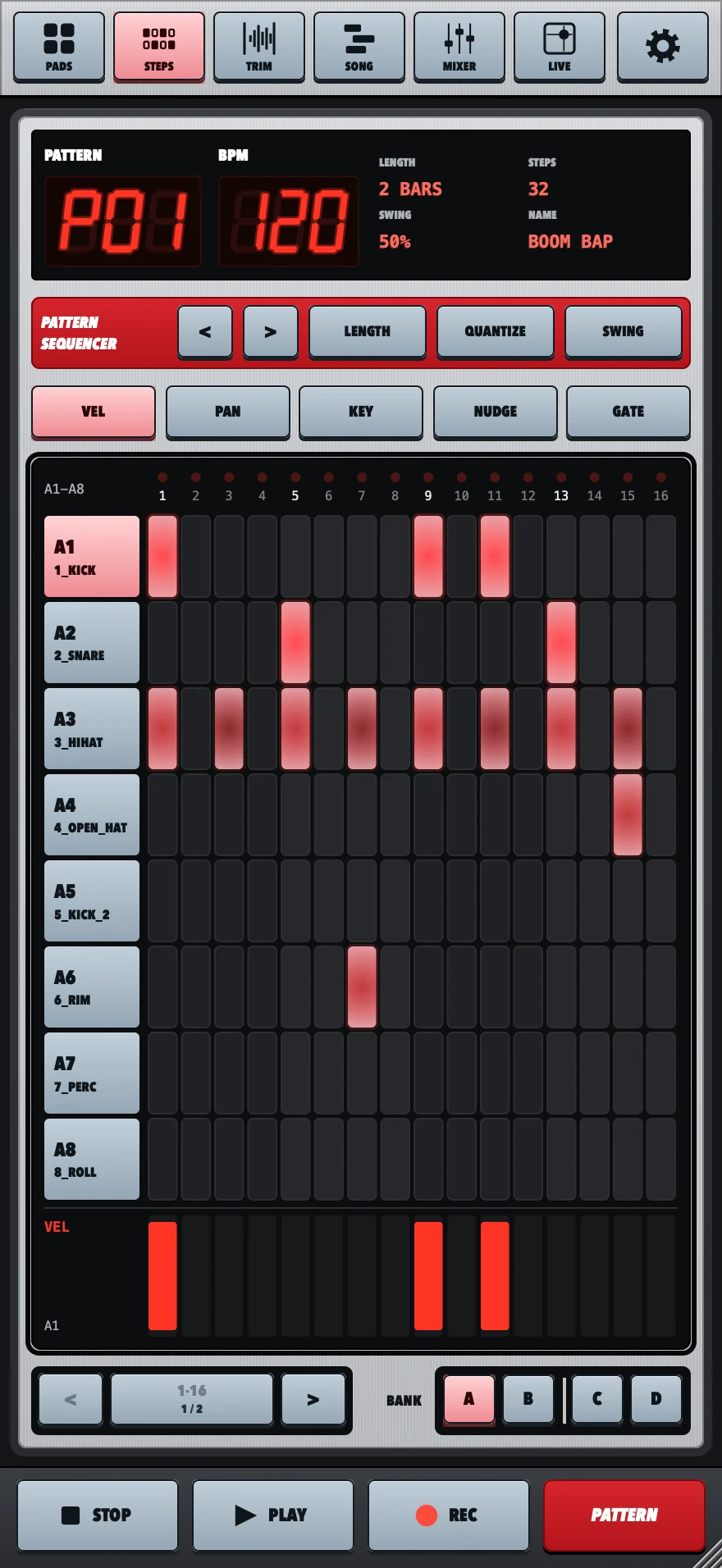
STEPS shows the current pattern as a grid: one row per pad of the selected bank, 16 steps per page.
PATTERN shows the pattern number (tap it to open the pattern list), BPM the tempo (tap it to open TEMPO). On the right: LENGTH in bars, the number of STEPS, SWING and the pattern NAME.
The keys VEL PAN KEY NUDGE GATE choose what the lane under the grid edits, for each hit of the selected pad:
| VEL | Velocity, 1–100. Touch the bar at the height you want. |
| PAN | L100 to R100. Touch the bar at the position you want. |
| KEY | Pitch of the hit, ±24 semitones. Drag up or down. |
| NUDGE | Moves the hit up to 30% of a step earlier or later. Drag up or down. |
| GATE | Length of the hit, from 1 step to the pattern length. Drag up or down. Setting a gate switches a trigger pad to GATE mode. |
Double-tap a bar to reset it.
Press REC and PLAY, then play the pads (on screen or from a MIDI keyboard). Hits are written into the current pattern and snapped to the QUANTIZE grid. If a count-in is set in SETTINGS, one or two bars of clicks play first.
32 patterns, P01–P32. Each cell shows its name, EMPTY or its length. Tap a cell to select the pattern. RENAME names it (up to 32 characters), COPY copies it to the next pattern you tap (tap twice to overwrite one that has notes), CLEAR empties it.
1, 2, 3, 4, 8 or 16 bars (16 to 256 steps on a 1/16 grid), applied with OK. DOUBLE makes the pattern twice as long and copies its notes into the new half – useful for building variations.
Choose the grid that hits recorded live snap to: 1/4, 1/8 or 1/16. APPLY TO PATTERN moves the notes already in the current pattern onto the grid and clears their nudge.
Swing delays every second 1/16 step, with MPC3000-style timing: 50% is straight, 66% is a triplet feel. Pick a preset (50–75%) or adjust in 1% steps. Swing is stored per pattern.
TRIM edits the sample of the selected pad. The header shows the pad, the sample name, its sample rate, channel mode, quality and trimmed length.
START, END, LEVEL, ATTACK and DECAY. Attack and decay are drawn on the waveform. With LOOP on, the knobs change to LS, LE, LR, X-FADE and LEVEL.
| TRUNCATE | Keeps only the part between start and end. |
| NORMALIZE | Raises the start–end range to full level. |
| REVERSE | Turns reverse playback on or off. |
| SILENCE | Replaces the start–end range with silence. |
| REMOVE | Cuts the start–end range out of the sample. |
| UNDO | Undoes the last of these edits (one level). |
The keys 1–8 at the bottom select the pad to edit in the current bank and play it (these hits are never recorded). POLY / MONO sets whether new hits of this pad overlap or cut each other. STEMS separates the sample into stems with LALAL.AI (vocals, drums, bass and more); it needs your own LALAL.AI key in SETTINGS › STEMS.
LOOP ON turns on loop playback and switches the pad to GATE. While you hold the pad, the region between LS (loop start) and LE (loop end) repeats, with an X-FADE crossfade at the seam. When you let go, playback continues from the loop to LR (loop release) and stops. Turning LOOP off returns the pad to the trigger mode it had before.
Choose 4, 8 or 16 in the CHOP band and tap CHOP TO BANK ›. Pick the bank that receives the slices; each bank shows EMPTY or how many pads it would overwrite. For 16 slices you choose a pair of banks (A + B or C + D). Each slice becomes a one-shot pad.
STRETCH (from STRETCH on TRIM, or STRETCH › on PADS) changes the length of a loop so that it fits the project tempo. The top waveform is the original, the bottom one the result.
From PAD MENU › RENAME ›. A name of up to 12 characters; the box below shows how it will appear on PADS and in STEPS. USE FILE NAME takes the name of the sample file.
A song is a list of up to 32 steps. Each step plays one pattern a set number of times (1 to 16).
| P − P + | Previous / next pattern for the selected step. |
| R − R + | Fewer / more repeats. |
| INSERT | Duplicates the selected step after it. |
| DEL | Removes the selected step. |
| ▲ ▼ | Move the selected step up or down. |
| LOOP | Plays the song in a loop. |
The list shows each step's pattern, LENGTH, REPEAT and total BARS; the top right shows the bars of the whole song. The coloured strip under the displays is an overview of the song.
Switch the red key in the transport from PATTERN to SONG and press PLAY.
The MIXER shows a channel strip for each bank and the master, with insert effects at the top.
Tap an insert row to select it. The drawer at the bottom names it (for example BANK A · SLOT 1 · SLICER) and offers OPEN EDITOR, BYPASS, REPLACE (ADD on an empty row) and REMOVE.
BUILT-IN lists the VU303 effects in groups – FILTER & EQ, DYNAMICS & DRIVE, TIME, MOD & COLOR and SPECIAL. Select one and tap INSERT; EMPTY SLOT clears the slot.
AUV3 lists the effect plug-ins installed on the device. FIND searches by name, developer and category, RESCAN refreshes the list. Each bank and the master can hold two AUv3 plug-ins; pads cannot. Plug-in hosting works in the iOS and macOS apps. A project that uses a plug-in which is no longer installed keeps the slot, marked NOT INSTALLED.
Built-in effects and plug-ins open in a floating window. Drag the title bar to move it and the bottom-right corner to resize it.
Built-in effects show three knobs with their values. The EQ also shows its curve: drag the dot to set the peak frequency and gain. AUv3 plug-ins show their own interface, or parameter sliders if they have none.
LIVE has eight XY pads that process the master output – for changes you perform while the beat plays.
The effect choice, MIX and LATCH are saved with the project.
The gear icon on each pad opens its effect list. Every pad can use any of these:
| Effect | X | Y |
|---|---|---|
| TAPE STOP | TIME | DEPTH |
| FILTER | CUTOFF | RESONANCE |
| COMPRESSOR | AMOUNT | PUNCH |
| BEAT REPEAT | SIZE | MIX |
| ISOLATOR | TONE | DRIVE |
| GRAIN SCATTER | SIZE | SCATTER |
| VINYL WARP | RATE | DEPTH |
| CRUSHER | BITS | RATE |
| DUB DELAY | TIME | FEEDBACK |
| SPACE FREEZE | SIZE | FREEZE |
| TRANCE GATE | RATE | WIDTH |
| PHASER | RATE | FEEDBACK |
| RESONATOR | PITCH | DECAY |
| RING MOD | FREQUENCY | MIX |
| PITCH DIVE | PITCH | GLIDE |
| STEREO SPIN | WIDTH | SPEED |
The first eight are the defaults on pads 01–08. NO EFFECT leaves a pad empty.
The gear key opens SETTINGS. Its tabs are PROJECT, AUDIO / MIDI, PADS, STEMS and APP.
The panel shows the project name, tempo, the number of samples, patterns and song steps, and when it was last saved. The open project is saved automatically after changes.
| RENAME | Renames the project file. |
| NEW | Starts an empty project with a name and a tempo (80, 90, 100, 120 or 140 BPM). |
| LOAD | Lists saved projects, newest first or A–Z, with a FIND field. OPEN .VU303 / .VU202 FROM FILES… opens a project from anywhere, including VU202 projects. DELETE removes a saved project (not the open one). |
| SAVE | Saves now. |
| SAVE AS | Saves a copy under a new name (for example my-beat.vu303) and continues with the copy. |
Choose PATTERN or SONG, then WAV MIX (one stereo file of the master) or WAV STEMS (the mix plus one file per pad). Files are 44.1 kHz, 24-bit WAV and include insert effects and AUv3 plug-ins. On iOS they are saved in the app's folder in the Files app; on Android you share them (stems as a zip).
SEND PROJECT saves the project and sends it to VU Studio on a computer on the same Wi-Fi network. This works from the iPhone and iPad app; on a computer, open the saved .vu303 file in VU Studio directly.
| AUDIO DEVICE · SETUP | Output, input, input pair (on interfaces with more than two inputs), sample rate and buffer size, with a TEST tone. |
| BUFFER | 128, 256 or 512 samples. Smaller is more responsive, larger is safer against dropouts. |
| METRONOME | Count-in before recording: OFF, 1 BAR or 2 BARS. |
| BACKGROUND AUDIO | Keeps the app playing when you switch to another app. |
| ZERO SNAP | Snaps TRIM markers to zero crossings. |
| MIDI INPUT | OMNI (all channels) or CH 10. |
| MIDI LEARN | The active MIDI template and its number of mappings. LEARN maps controls, LIST shows the templates and mappings, LOAD opens a template file, SHARE sends the template to another app or device. See MIDI learn. |
| CLOCK | INT (the app's own tempo) or HOST. |
| VELOCITY | How MIDI velocity is used: NORM, FIXED, SOFT or HARD. |
| CHOKE BANKS | Banks in which only one pad plays at a time – useful for open and closed hi-hats or chopped breaks. |
| SAMPLING ENGINE | VU202 or VU303 for all pads. Switching moves every loaded pad to the engine's first quality. |
| NEW SAMPLE QUALITY | The quality new pads get when you record or import. |
| NORMALIZE ON IMPORT | Normalizes every imported sample. |
| CONFIRM DELETE | Turns the SURE? confirmations on or off. |
Your LALAL.AI license key for the STEMS key on TRIM: paste it, save it, test it and see the minutes you have left. Stem separation runs on LALAL.AI's servers, so the sample is uploaded when you use it.
| LOW POWER | Redraws the screen less often to save battery. |
| HAPTICS | A light tap on every pad press (iPhone and Android). |
| HELP | QUICK GUIDE, WHAT'S NEW, and the projects folder (on iOS: Files › VU303; on Android: SHARE PROJECT). |
The 26 effects available in the DSP slots on PADS (via MFX) and, except TIME STRETCH, as MIXER inserts. For each effect you see what CTRL 1, 2 and 3 control.
| # | Effect | CTRL 1 | CTRL 2 | CTRL 3 |
|---|---|---|---|---|
| 1 | FILTER LP | Cutoff | Resonance | Drive |
| 2 | FILTER HP | Cutoff | Resonance | Mix |
| 3 | FILTER BP | Cutoff | Resonance | Mix |
| 4 | EQ | HP (off fully left) | Peak ±12 dB | LP (off fully right) |
| 5 | COMP | Threshold | Ratio | Attack |
| 6 | DRUM COMP | Threshold | Ratio | Attack |
| 7 | LIMIT | Ceiling | Release | Gain |
| 8 | DELAY | Mix | Time | Feedback |
| 9 | TAPE DELAY | Mix | Time | Feedback |
| 10 | REVERB | Mix | Size | Damping |
| 11 | FLANGER | Amount | Mix | – |
| 12 | PHASER | Amount | Mix | – |
| 13 | RING MOD | Frequency | Mix | – |
| 14 | VINYL SIM | Comp | Noise | Wow |
| 15 | TIME STRETCH | Amount | – | Mix |
| 16 | SLICER | Pattern (off, P01–P16) | Rate (1/32–1/4) | Feedback |
| 17 | OVERDRIVE | Drive | Tone | Level |
| 18 | DISTORTION | Drive | Tone | Level |
| 19 | FUZZ | Drive | Tone | Level |
| 20 | LO-FI | Rate (44.1–2 kHz) | Bits (16–2) | Filter |
| 21 | ISOLATOR | Low | Mid | High (centre flat, left = kill) |
| 22 | CHORUS | Depth | Rate (0.1–5 Hz) | Level |
| 23 | WAH | Sens | Freq (200 Hz–2 kHz) | Reso |
| 24 | C.CANCEL | Cancel | Low | High |
| 25 | NOISE GEN | Level | Color (white, pink, brown) | Quality |
| 26 | RADIO TUNING | Tuning | Noise | Range (AM, SW, FM) |
C.CANCEL is a centre cancel: it removes what sits in the middle of a stereo sample, typically the vocal. On the EQ, the peak frequency is set by dragging the dot on the curve in the MIXER effect window.
| Double-tap a knob | Reset it to its default. |
| Double-tap an effect key | Bypass the effect; again to bring it back. |
| Hold an effect key | Open MFX for that slot. |
| Hold the quality key | Open SAMPLING ENGINE. |
| Tap the BPM display | Open TEMPO (on PADS and STEPS). |
| Tap the PATTERN display | Open the pattern list. |
| Hold a pad with REC lit | Record into that pad. |
| Drag a file onto a pad | Load it. |
| Double-tap a fader | Set it to 0 dB. |
| Double-tap a lane bar | Reset that step's value. |
| Double-tap MIX on LIVE | Set it to 100%. |
Notes 36–67 play pads A1–D8 (36 = A1, 44 = B1, 52 = C1, 60 = D1). Velocity is shaped by SETTINGS › PADS › VELOCITY. With REC on, notes are recorded into the pattern, and the note length sets the gate. MIDI INPUT listens on all channels (OMNI) or only on channel 10.
MIDI LEARN connects the controls of the app to the knobs, faders, pads and keys of your MIDI controller (USB). It works on iPhone, iPad and Android.
CC21, a note such as C1, or PB for the pitch bend.| TAPS: LEARN / USE APP | USE APP lets your taps reach the app while MIDI LEARN stays open – to open STRETCH, the PADS strips of the MIXER or a dialog. Switch back to LEARN to map what you opened. |
| CLEAR | Removes the mapping of the picked control. |
| MOVE | Moves the banner to the top or the bottom, so the controls under it can be tapped. |
| DONE | Ends MIDI LEARN (on Android also the Back button). |
| PADS | MASTER, CTRL 1–3, the BPM display, every key, the banks, pads 1–8, HOLD and SOURCE. |
| STEPS | Pattern < and >, LENGTH, QUANTIZE, SWING, the lanes, the pages and the banks. |
| TRIM | The five knobs, every key, pads 1–8, and the START, END, LOOP START, LOOP END and LOOP RELEASE markers. A knob moves a marker across the part of the waveform on screen: ZOOM IN for finer steps. In STRETCH: the length chips, ORIGINAL BPM and its keys. |
| SONG | The step pattern and repeat keys, INSERT, DEL, the move keys, LOOP and the pattern pool. |
| MIXER | Each strip's fader, MUTE and SOLO, and the keys under the strips. |
| LIVE | X, Y and ON of each XY pad (tap a pad, then pick which one), its effect key, MIX, LATCH and RESET. |
| Every view | The view keys, SETTINGS, STOP, PLAY, REC and PATTERN / SONG. |
A mapping belongs to its view, so one knob can be CTRL 1 on PADS, START on TRIM and a fader on MIXER. The view keys and the transport work on every view. A control does what it does on screen at that moment – CTRL 1 turns whatever PADS shows. Knobs and faders follow CC (0–127) or the pitch bend; keys follow notes (pressed while held) or CC (pressed from 64 up). Mapped MIDI no longer plays the pads, and a mapping keeps its own MIDI channel.
Mappings are kept in MIDI templates, one per controller. LIST switches templates, shows the mappings (× removes one) and has NEW, RENAME and DELETE. SHARE sends the active template as a .json file to another app or device; LOAD opens one from Files, Drive or another app and makes it active (a template with the same name is replaced).
.vu303. VU303 also opens .vu202 projects.Questions
Yes. In SETTINGS › LOAD, tap OPEN .VU303 / .VU202 FROM FILES… and choose the project. It loads with the VU202 sampling engine, so it sounds as it did. When you save, it is written as a .vu303 file.
Yes. Send the project from the iPhone or iPad with SEND PROJECT, or open the .vu303 file in VU Studio on the computer.
VU303 is in beta. Join the vubeatz Patreon at patreon.com/cw/vubeatz2. You take part in the tests, get the release version when it comes out, and get the VU950FX plugin as a gift – the VST version for everyone, the AUv3 version for iPhone users.
iPhone, iPad, Android and macOS. Hosting AUv3 plug-ins works in the iOS and macOS apps; Send to VU Studio works from iPhone and iPad.
New pads start in MONO voice mode, where a new hit stops the previous one. Switch the pad to POLY on TRIM if you want hits to overlap. If the pad is in a choke bank, other pads in that bank cut it too.
Yes. Notes 36–67 play the pads without any setup. For everything else use MIDI LEARN in SETTINGS › AUDIO / MIDI: tap a knob, key, fader, XY pad or TRIM marker on screen, then move the control on your controller. The mappings are saved as a template you can share.
TRIM has a one-level UNDO for the PROCESS edits. Other changes are not undoable, which is why deleting and overwriting ask SURE? first.
Your samples and projects stay on the device unless you export, share or send them. The only online function is STEMS, which uploads the sample to LALAL.AI when you use it with your own key. Details are in the privacy policy.
Beta
VU303 is in beta and the testing phase is starting now. The app is available to members of the vubeatz Patreon.
I have released four apps so far, and public betas have not worked: almost nobody came back with feedback. The last weeks on Patreon have shown me that the best testers are the people who support the project. So the beta is for them.