VU950
iOS edition
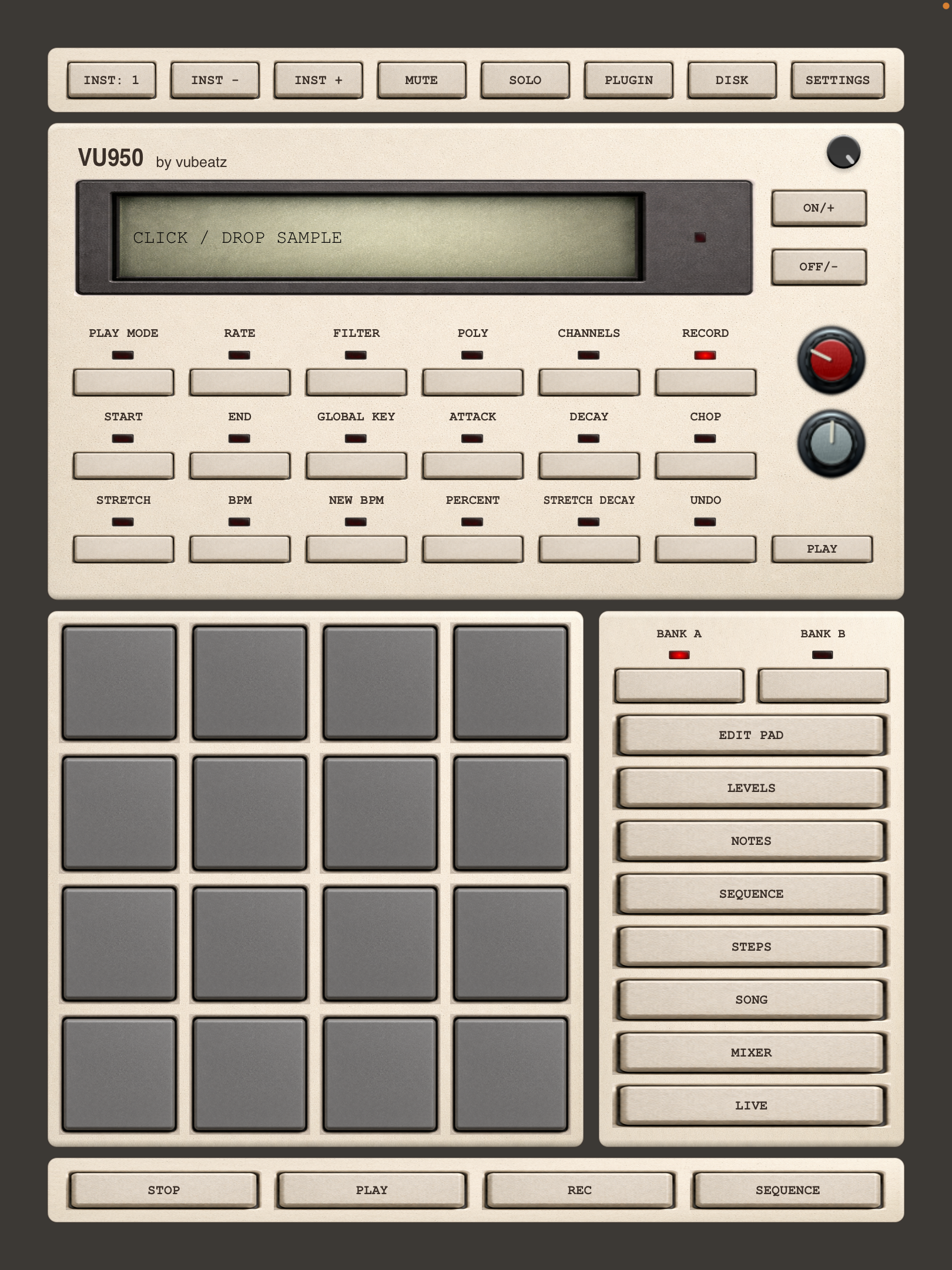
A complete map of the VU950 sampler interface on iOS: what every button, encoder and mode does. Scroll through the sections or jump around with the index below.
Looking for the VST/AU plugin instead? Head over to vu900.com.
Mental model — read this first
- Panel buttons pick the context (what you edit), and the main encoder changes that context's value.
- DISK has three states: DISK → RECORD (when no sample) → REMOVE (when a sample is loaded).
- C3 / PLAY plays a note outside record mode, and acts as RECORD/STOP inside record mode.
- MIXER and INSERTS work on tracks; LIVE FX are performance effects on the master.
VU950 Panel
The top button rows pick a sample sound parameter. The display on the left shows the file name and value; on the right are three knobs and C3 PLAY.
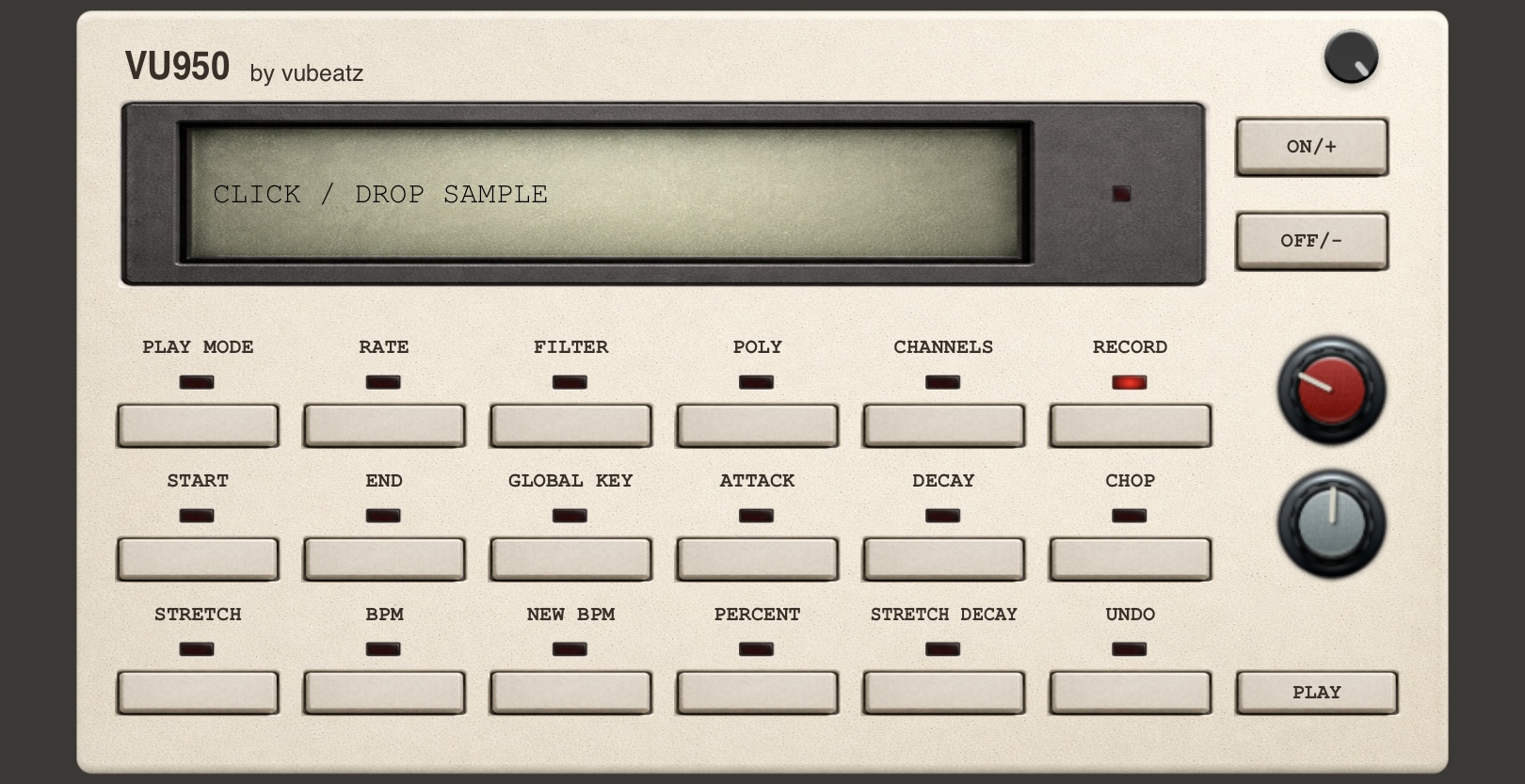
Sample playback mode (one-shot / gate). The +/- buttons switch the variant.
Sample rate / lo-fi character of the sample. Set the value with the main encoder.
Sampler filter 0–99. The encoder sets the value.
Toggles mono / poly voices. +/- changes the state.
Picks the sample's working channel: left / right.
Load / remove a sample. No sample → RECORD (arms recording); sample loaded → REMOVE (deletes it).
Sample start point. The encoder moves the start.
Sample end point. The encoder moves the end.
The sample's root key. The encoder maps the note range.
Amplitude envelope attack.
Amplitude envelope decay.
Toggles chop (slice) mode. When chop mode is on, start and end view are changing the start and end point of the slice, change slice by assigned pad (Slices starts at C1)
Picks the timestretch preset. +/- cycles the preset.
Base BPM of the sample / project for stretching.
Target BPM for the stretch.
Timestretch amount as a percentage.
Decay parameter for the stretch algorithm.
Undoes the last timestretch, if undo is available.
Drives the active parameter (rate, start, end, filter, root, attack, decay, BPM…). Double-click → precise mode.
Input signal drive.
Output gain / output volume.
Anti-aliasing filter amount (low-pass amount).
Contextual +/- : change the value/variant of the currently selected parameter.
One-shot: click plays C3. Gate: note-on on press, note-off on release. In record mode: RECORD → STOP.
Pads & modes
The 4×4 grid plays assigned samples/instruments (up to 32 pads across banks A/B). The right column opens the edit and performance modes.
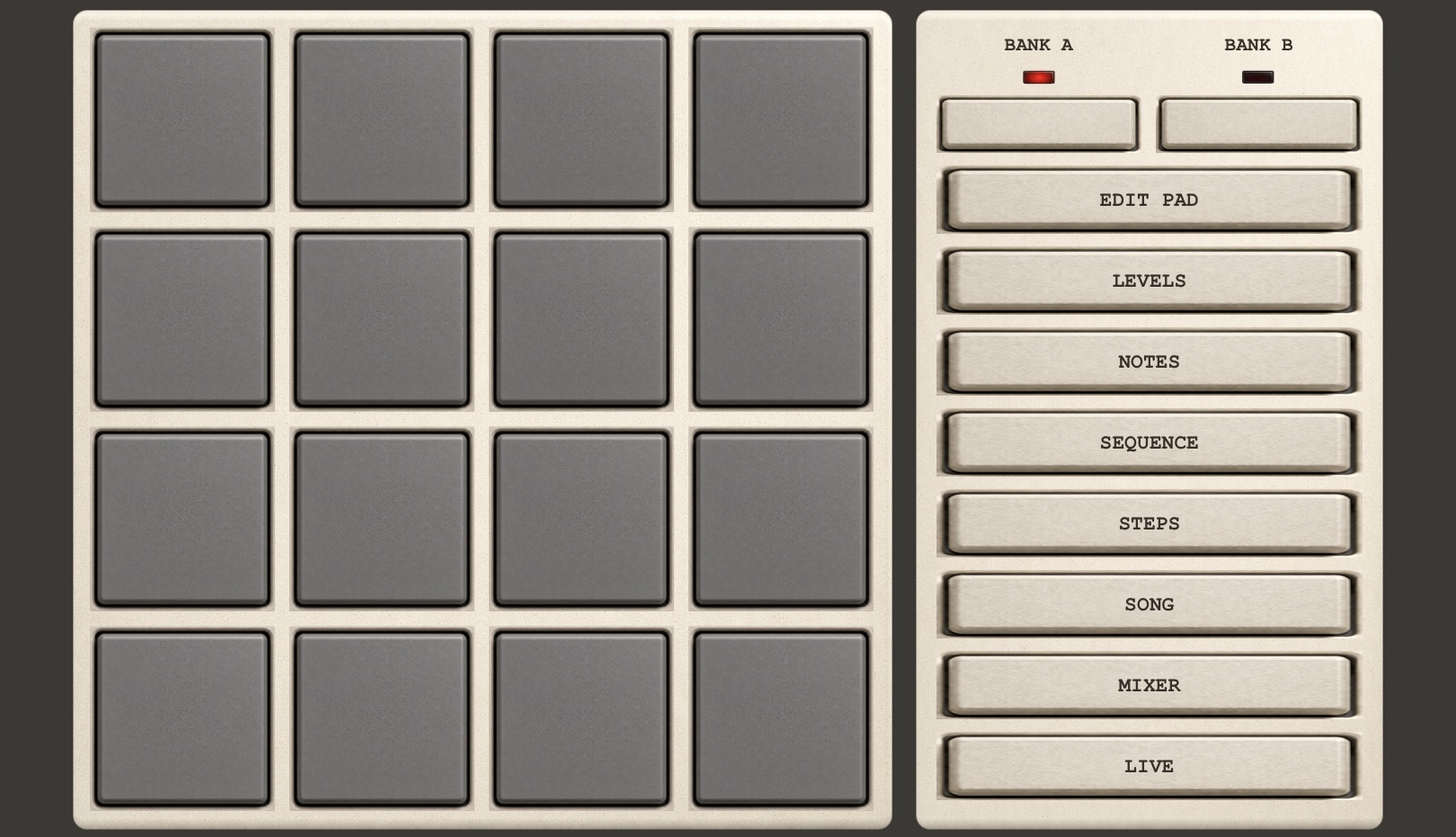
Press triggers the pad assign; release closes the length. In REC+PLAY it records an event into the sequencer.
Switches the pad bank — up to 32 pads total.
Enters pad-select for assign editing (SELECT PAD waits for a tap). Opens the Edit Pad modal. When Edit Pad is active, hold assigned pad and press empty pad to copy assignement.
Pick a source pad and the grid plays it at different velocities. EXIT LEVELS turns the grid off.
Pick a source pad and the grid plays it at different notes/pitches. EXIT NOTES turns the grid off.
Opens the sequence panel (number, tempo, bars, timing, swing). BACK returns.
Opens the pad step sequencer.
Opens Song Mode — arranging sequences on a timeline.
Opens the track + master mixer.
Opens Live FX — performance effects on the master.
Stops transport and resets the song-step selection.
Start / pause transport.
Arms / disarms sequencer recording.
Switches transport between sequence mode and song mode.
Lowers / raises the pads' base note by an octave.
Change the active track, mute and solo the current track.
Edit Pad
Opens after selecting a pad in EDIT PAD mode. Sets what that pad plays.
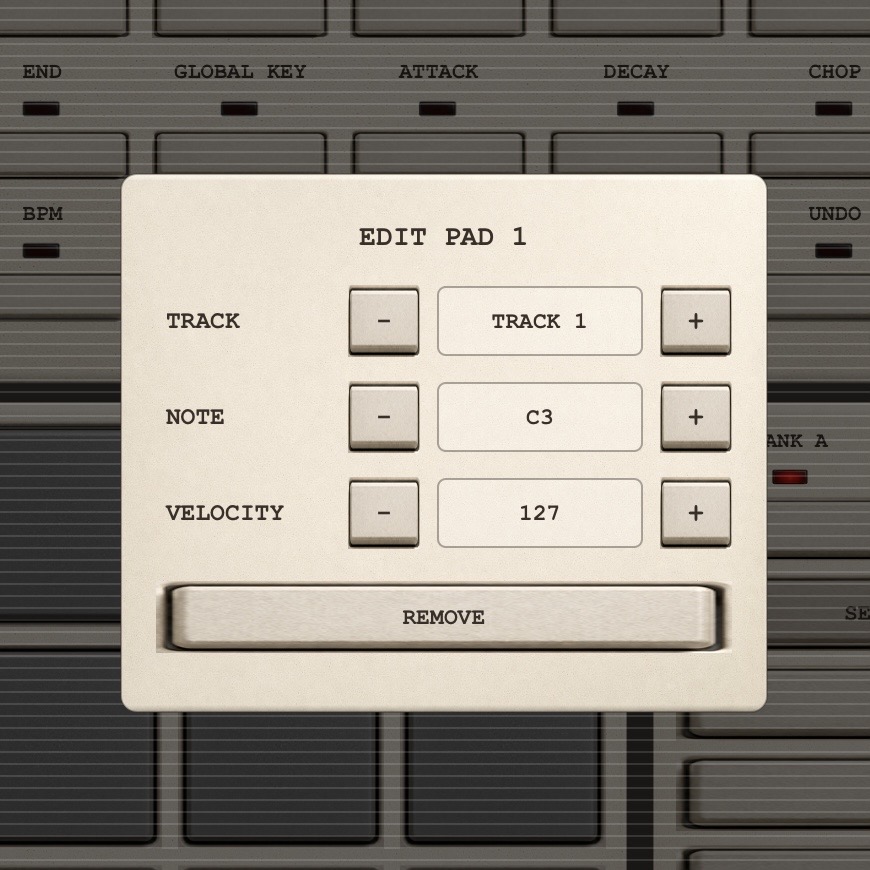
Track assigned to the pad (e.g. TRACK 1).
Note triggered by the pad (e.g. C3).
Velocity of the pad assign (e.g. 127).
Removes the override / assign from the selected pad.
Tapping the backdrop closes the modal and exits edit pad mode.
Step Sequencer
The step grid programs pad events. The bottom row chooses what you edit in a cell; the right panel sets the sequence parameters.
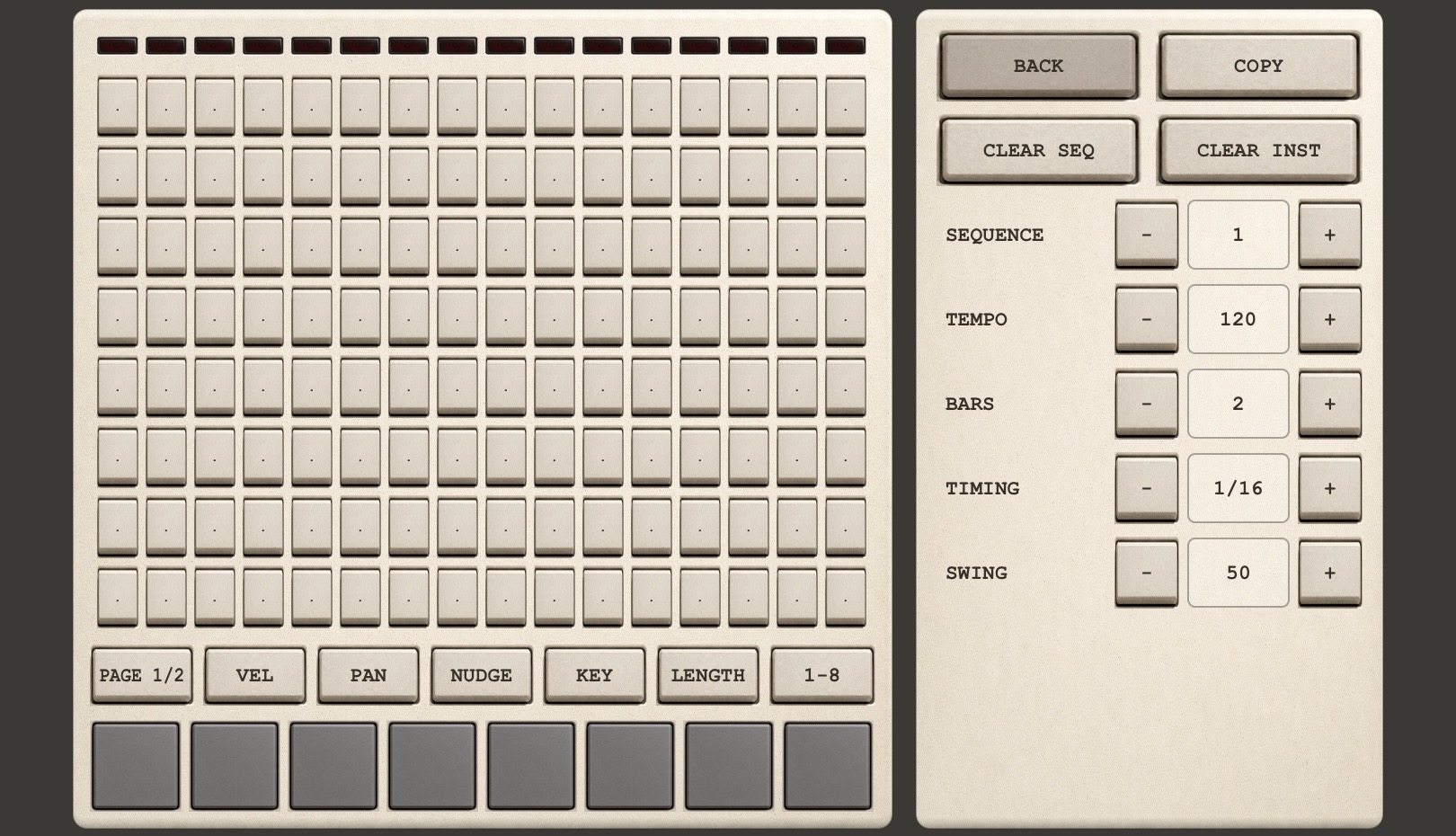
Click toggles an event. Long press opens the edit modal for the active mode.
Switches the step page.
Step velocity edit mode.
Step pan edit mode.
Step timing offset.
Step note/key edit (modal with -/+).
Step length edit.
Changes the visible range of pad rows in STEPS.
Sets the value of the edited step parameter (velocity, pan, nudge, length).
Changes the active sequence.
Tempo of the active sequence.
Number of bars.
Grid / timing division (e.g. 1/16).
Swing amount.
Clears the whole sequence or just the active track's data.
Copies the active sequence to the first free slot.
Returns to the main pad layout.
Song Mode
Arrange sequences on the song timeline. Song steps on the left, available sequences and selected-step settings on the right.
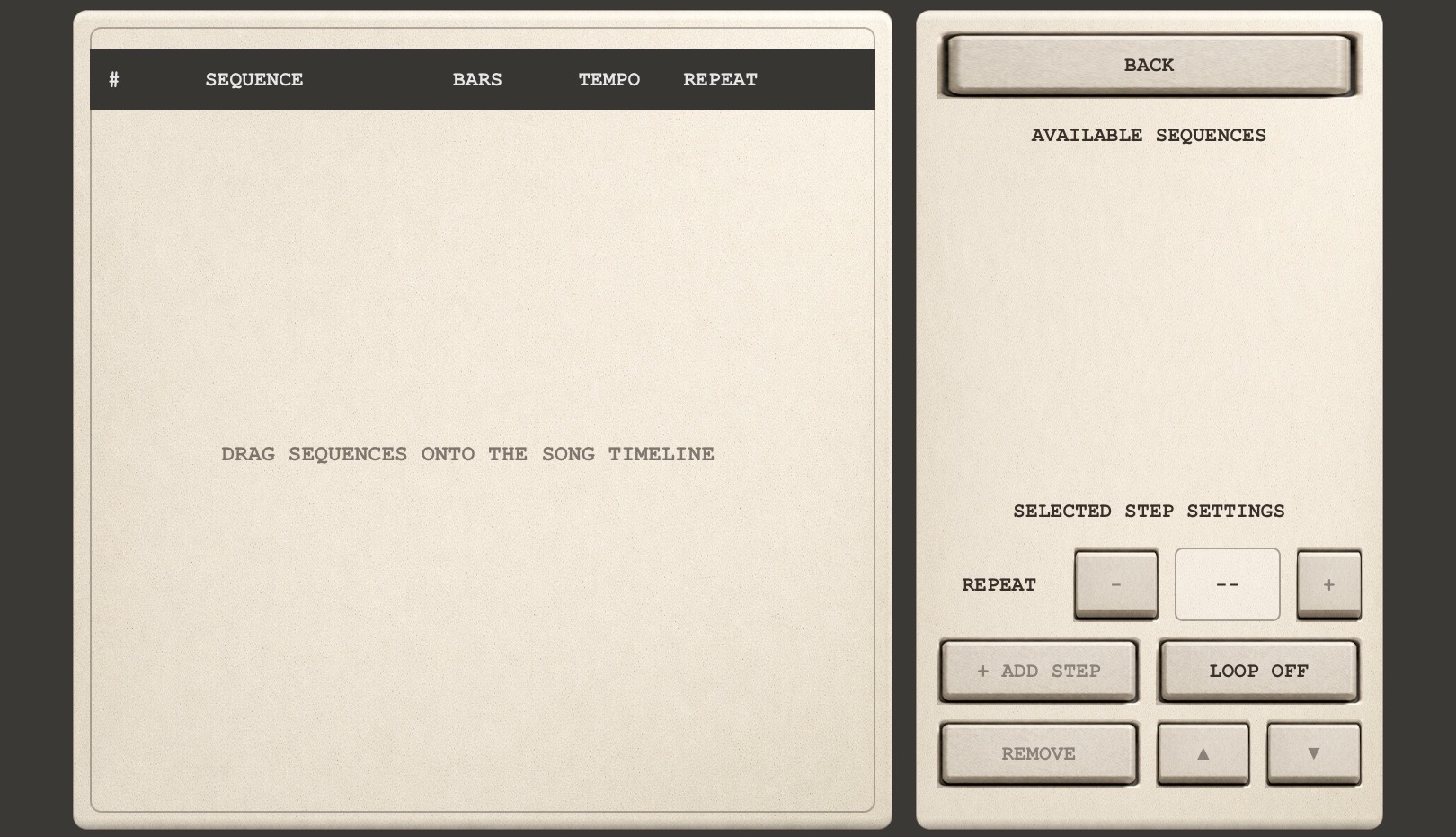
Select, reorder and preview steps: sequence / bars / tempo / repeat. Drag sequences onto the timeline.
Adds the chosen sequence to the timeline.
Repeat count of the selected step.
Loops the entire song arrangement.
Removes the selected song step.
Moves the selected step up / down.
Exits Song Mode.
Mixer
8 tracks + master. Each track has a meter, PAN, 4 insert slots and a fader. The master has a stereo meter, fader and balance.
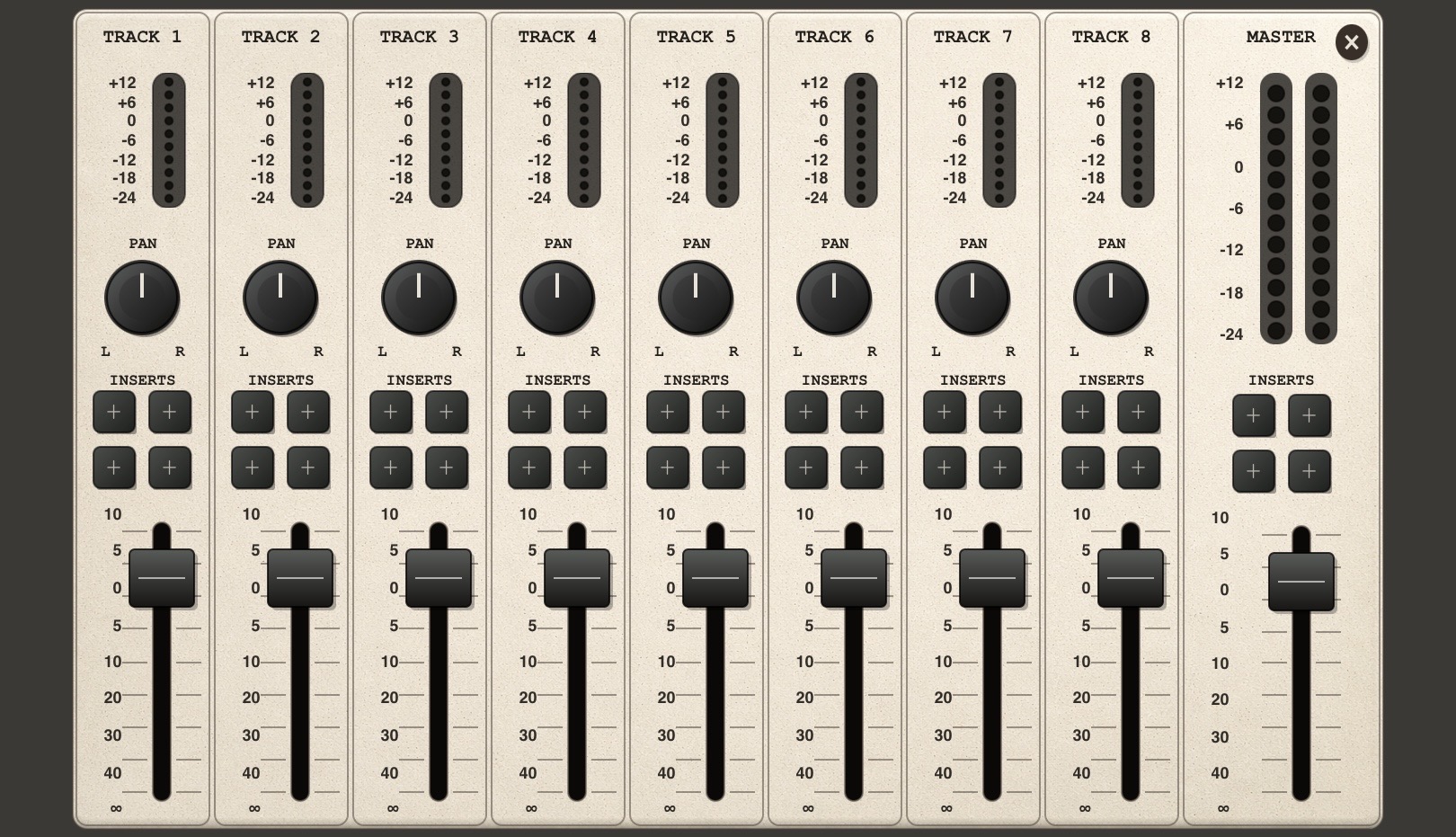
Shows the track level (+12…-24 dB).
Track pan L–R.
Track volume.
Click an empty slot → effect picker; a filled one → control modal. Long press → picker.
Master volume.
Master balance.
Master L/R level.
Closes the mixer view.
Effect list
The insert picker for a track or the master. Choose an effect, then edit its parameters in a dedicated modal or with knobs.
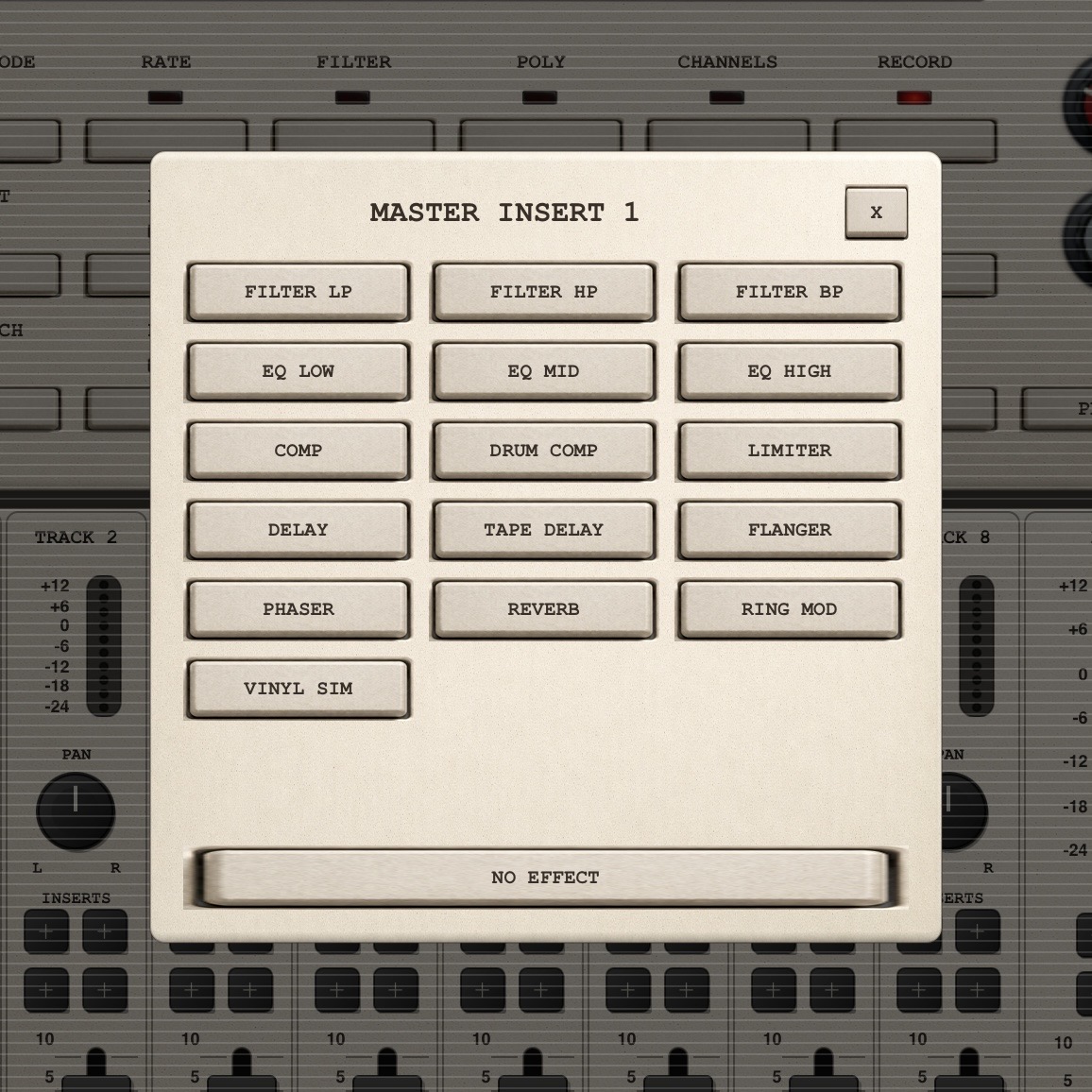
Filter LP / HP / BP, EQ Low / Mid / High, Comp, Drum Comp, Limiter, Delay, Tape Delay, Flanger, Phaser, Reverb, Ring Mod, Vinyl Sim, Stutter.
Toggles bypass on the assigned insert.
Clears the insert slot.
Edit effect parameters when there's no dedicated modal.
Closes the insert modal.
Live FX
Eight XY pads of performance effects on the master. Each pad controls two parameters (X and Y axes). Track mute/solo sit along the top.
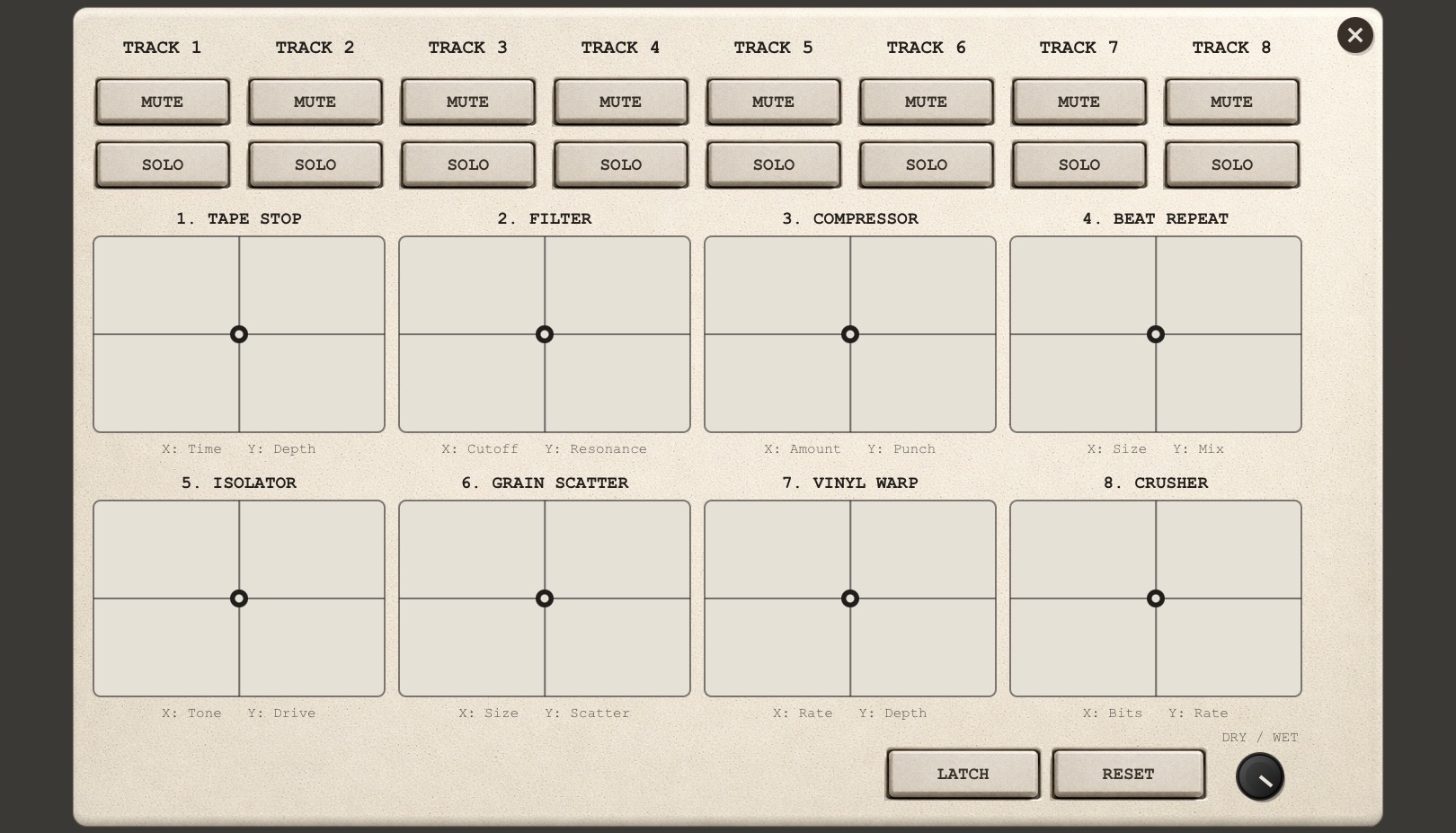
X: Time · Y: Depth — master slowdown / tape stop.
X: Cutoff · Y: Resonance — performance filter.
X: Amount · Y: Punch — performance compressor.
X: Size · Y: Mix — rhythmic repeat.
X: Tone · Y: Drive — DJ-style isolator.
X: Size · Y: Scatter — granular / glitch.
X: Rate · Y: Depth — wow / flutter / pitch wobble.
X: Bits · Y: Rate — bit / sample-rate crusher.
The effect stays on after you lift your finger; turning it off resets the pads.
Resets all Live FX.
Global mix of the Live FX chain.
Mute / solo a specific track in the Live view.
Settings & sources
Beyond the main screens, VU950 also has configuration panels and a source browser.
Project Save / Load / New / Export, play note, recording input, slices, assign-to-pad, log.
MIDI CC mapping for encoder, filter, AA filter, attack, decay, global key, input drive, output. Modulation toggle.
Classic / Modern template, reset colours, background image and its opacity, theme colour editing.
Drumkits, folders, files, videos. Preview Play/Pause, Load, Autoplay, preview volume. Store: Unlock / Open / Download.
Select and host AUv3 instruments for a track.
Export the master or stems.